Glow Art: Finger Spinner
- 4.7
- Rating
- 100.00K
- Installs
- Free
- Price
 Analysis by App-foxy
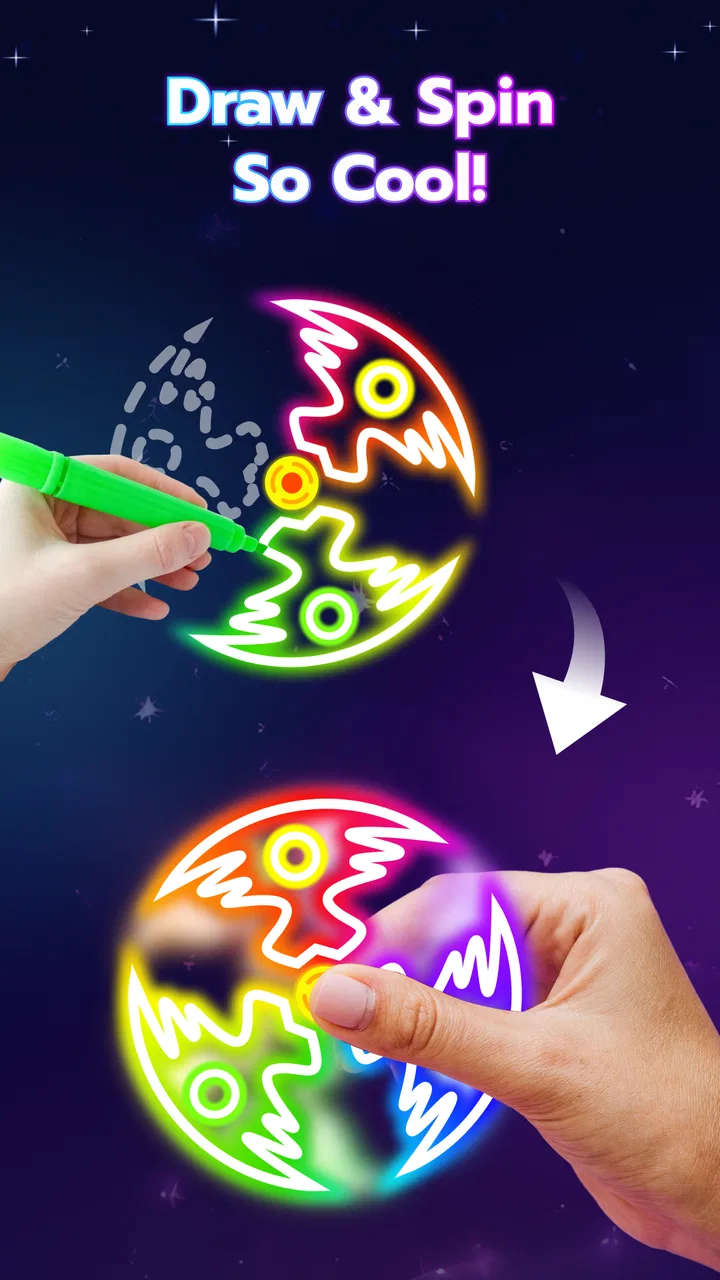
I tried Glow Art: Finger Spinner as a small creative break rather than as a full drawing studio, and that distinction matters. This free art and design app from Trading Compass is built around making spinner-style visuals with finger gestures. The appeal is immediate: you touch the screen, create a mark, and let the movement turn that simple action into something more decorative. It feels closer to a relaxing visual toy than to a traditional illustration tool.
That makes it easy to approach for the first time. You do not need drawing experience, a design plan, or a collection of brushes to begin. The app is aimed at quick experimentation, and its Everyone age rating fits that accessible character. At the same time, anyone expecting layers, detailed editing, typography, or professional export controls should adjust their expectations before opening it.
What the first session feels like
The first useful thing to understand is that the central gesture is the experience. Instead of treating the screen like a blank canvas where every line must be controlled precisely, I found it more enjoyable to think of each swipe as an input into a moving pattern. A short gesture can create a different visual rhythm from a long one, while repeated movement gradually gives the image more presence.
You May Also Like

 Blood Strike: 2.5 Anniversary
Blood Strike’s Loadouts Turn Every Drop Into a Tactical Gamble
A close look at Blood Strike’s custom loadouts: how fast access to signature weapons reshapes its battle royale rhythm, rewards preparation, and narrows the gap between fights.

 Pandora - Music & Podcasts
Pandora’s Music Is Easy to Start, but Harder to Recover
Pandora’s strength is its low-effort path from a seed to a station. Its weak spot is how much confidence it asks you to place in connection, setup, and quiet recovery.

 8 Ball Pool
 Is Built on Rivalries, Rematches, and Routine
A close look at the rivalries, rematches, shared routines, and unanswered safety questions that turn a quick pool match into a persistent mobile community.

 Samsung Music
’s Quiet Strength Is Playing What You Already Own
Its reach comes less from spectacle than from dependable access to a personal library. That simplicity is both the app’s strongest retention engine and its ceiling.

 AccuWeather: Weather Radar
AccuWeather Review: A Quick, Clear Forecast for Everyday Decisions
For everyday plans, the best forecast is the one you can understand quickly. AccuWeather makes rain timing, radar, and local conditions easy to act on, with a few trade-offs.

 Hill Climb Racing
Why Hill Climb Racing Still Turns Crashes Into One More Run
A tiny car, a bumpy hill and one more upgrade: Hill Climb Racing keeps resurfacing because its simple chaos makes every near-miss feel personal.
More From Our News Desk



This is why the app works well when I want a few quiet minutes between tasks. I can start without deciding what to draw, make a handful of marks, and judge the result as it develops. The process rewards curiosity more than planning. If you approach it trying to reproduce a particular illustration exactly, the lack of conventional drawing controls may feel limiting. If you approach it as finger-based generative art, the simplicity becomes the point.
The app’s store summary describes a swipe-driven spinner art experience, and that is a fair way to frame it without making it sound like a normal sketchbook. Its short store description, “Glow Art,” also points toward the visual mood rather than a large feature set. I would not install it to replace a serious drawing application. I would install it for fast, low-pressure experiments that produce a result from very little effort.
There is also a useful psychological difference between this and a blank canvas. A blank canvas can make a new user wonder what to draw. Here, the gesture itself gives you a starting point. That lowers the barrier for children, casual users, and anyone who enjoys visual play but does not consider themselves artistic.
Who will get the most from it
I think Glow Art is best suited to people who like abstract patterns, motion-based visuals, and short creative sessions. It can be a pleasant option for a child exploring touch interaction, a student taking a break from studying, or an adult who wants something calming that does not require a long tutorial. The Everyone rating supports that broad audience, although younger users may still benefit from an adult showing them the basic gesture once.
It is less suitable for a user who needs a finished poster, a carefully traced drawing, or a repeatable design workflow. A conventional sketching app is the better choice when control over individual strokes matters. A photo editor is better when the goal is to enhance an existing image. Glow Art occupies a narrower space: it turns movement into a visual experience and keeps the number of decisions small.
That narrow focus is a strength during a tired moment, but it can also become a weakness after extended use. Once the novelty of the gesture wears off, users who need many tools or a larger creative challenge may find the experience too contained. I see it as an app to return to in short bursts, not necessarily as the only art app on a device.
Getting started without overthinking the setup
The app is free, and the current version is 1.1.1. It runs on devices using Android 7.0 or later, so the compatibility range includes many older phones and tablets. That is useful for families or for anyone keeping an older device as a casual entertainment screen. After installing it, I would begin with the simplest possible goal: make one clear pattern rather than trying to understand every possible visual result immediately.
On the first launch, give yourself a moment to identify the active drawing area and the response to touch. The most common beginner mistake with an app like this is swiping too quickly while looking for an instant final image. The visual result is easier to judge when you make one deliberate gesture, pause, and then add another. That small change makes the interaction feel less random.
I also recommend holding the device in the position that feels natural before starting. Because the artwork is created through finger movement, an awkward grip can make the first attempt feel less responsive than it really is. A tablet gives more room for broad gestures, while a phone encourages shorter, more compact movements. Neither is automatically better; they simply produce a different kind of session.
There is no need to begin with a complicated concept. Try a slow sweep, then a curved movement, and then a few shorter touches. Watch how the composition changes after each action. This is a practical way to learn the app because it teaches you through visible feedback instead of forcing you to memorize controls.
The first meaningful success
For a first result that feels intentional, I suggest using a simple three-stage rhythm. Start with one broad swipe to establish the main direction. Add a second gesture that crosses or follows that direction, then stop before the screen becomes too busy. The pause is important: it lets you decide whether the image already has enough energy.
Many users will instinctively keep adding marks because each gesture is satisfying. I found that restraint often produces a cleaner result. The app is more enjoyable when I treat each stroke as a design decision rather than as a button press. If the first attempt looks messy, that is not a failure; it is useful feedback about how much movement the composition can handle.
A good everyday scenario is a short break while waiting for a meeting or commuting on public transport. I can open the app, create a few variations, and close it without needing to save a complex project or remember a multi-step editing process. That quick in-and-out quality is one of its strongest practical advantages.
Another worthwhile workflow is to make several deliberately different attempts instead of trying to perfect one image. Use a slow, spacious pattern first, then a denser one, and finally a version made with restrained gestures. Comparing the three teaches you more about the app’s character than repeating the same movement. It also prevents the session from turning into aimless tapping.
Why the movement matters more than drawing skill
Traditional drawing apps reward hand precision. Glow Art rewards timing, direction, and willingness to accept variation. That changes how I judge the result. A pattern that would look uneven in a sketching program can feel expressive here because the visual interest comes from the relationship between the gesture and the spinner effect.
This makes the app a useful introduction to abstract composition. A beginner can notice balance, density, repetition, and empty space without first learning perspective or anatomy. I especially like the way this removes the fear of making a “bad drawing.” There is no pressure to depict a recognizable object, so the user can focus on how the image feels.
The trade-off is that the same abstraction may frustrate someone who wants direct control. If you have a precise logo in mind, the app is not the right tool. If you want to explore how a few movements can create a glowing pattern, it is much more convincing.
Common confusion and how to avoid it
The first point of confusion is expecting every swipe to behave like a normal pen stroke. The app’s identity comes from the spinner-style transformation, so the visible result should be judged as a developing pattern rather than as a literal record of your finger’s path. Once I stopped searching for one-to-one accuracy, the interaction became easier to understand.
A second issue is adding too much too soon. Because it is fun to keep moving, a new user may cover the visual space before noticing what the earlier gestures contributed. I recommend pausing after each major movement. This is not just a patience tip; it is a way to learn the visual balance of the app and discover when a composition has reached its strongest point.
Another practical point is that the same gesture can feel different depending on the available screen space and how you hold the device. A short movement on a phone may create a compact design, while a broader movement on a tablet can feel more open. I would not compare results from different devices too strictly. Treat each screen as its own canvas and adjust your gesture length accordingly.
Some users may also wonder whether this can replace a full art application. In my view, it cannot, and it does not need to. It lacks the purpose of a detailed illustration workspace. The better comparison is with simple creative toys and relaxation apps: Glow Art gives you a more active role than a passive visualizer, but less control than a serious drawing tool.
The app’s audience size suggests that the concept has found interest beyond a tiny niche: it has passed one hundred thousand installs and holds a 4.7 average from around four thousand ratings. Those figures make it easier for me to view the app as an established casual choice rather than an experiment with no user base, but they do not change the central trade-off. Popularity cannot turn a focused spinner-art tool into a general-purpose editor.
Small habits that improve the results
My first useful habit is to begin with a clean intention: choose whether the next attempt should feel open, dense, symmetrical, or energetic. You do not need a formal plan. A single word is enough to guide your gestures. This prevents random movement from taking over and makes the result easier to evaluate.
My second habit is to leave visual breathing room. The temptation is to fill every area because the screen responds immediately, but empty space can make the central pattern easier to appreciate. I found that stopping earlier often creates a more satisfying image than trying to maximize activity.
My third tip is to use the app as a reset between more demanding tasks. Rather than opening it only when you want to make “art,” use it when your attention feels scattered. A few controlled swipes can provide a change of pace without the commitment of a game level or the concentration required by a detailed drawing.
A fourth insight is to separate experimentation from evaluation. During the first few gestures, do not decide too quickly whether the result is good. Let the pattern develop, then look at it as a whole. This is especially helpful for first-time users who might abandon the app after one unfamiliar-looking attempt.
How it compares with familiar alternatives
Compared with a standard sketching app, Glow Art is faster to understand and less demanding, but much less precise. A sketchbook-style tool gives control over brush size, layers, erasing, and individual lines. That is valuable for illustration and planning. Glow Art is preferable when I want the app to make the visual process playful instead of technical.
Compared with a coloring app, it offers more active creation and less structured guidance. Coloring is relaxing because the shapes are already supplied. Here, I have to provide the movement, but I also get a more personal result from a very small amount of input. Users who prefer clear boundaries may enjoy coloring more; users who like surprise may prefer the spinner approach.
Compared with a photo editor, the difference is even clearer. Photo editors start with an image and help you modify it. Glow Art starts with touch and turns that interaction into abstract artwork. It is not designed for correcting photographs or preparing polished social graphics, so choosing it for those tasks would lead to disappointment.
Its strongest competitive advantage is the low entry cost in both money and effort. Since it is free, a curious user can try the concept without committing to a paid creative suite. Its main limitation is the same focused scope that makes it approachable. Once you want detailed editing, repeatable layouts, or a broader set of artistic tools, another app will serve you better.
Who should install it and who should skip it
I would recommend Glow Art to someone who wants a friendly first step into digital art, especially if a blank canvas feels intimidating. It is also a good fit for casual users who enjoy visual motion, abstract patterns, and short sessions. Parents looking for an age-appropriate creative activity may find the simple interaction appealing, provided they are comfortable letting a child explore the screen independently after the initial demonstration.
I would skip it if your main goal is professional artwork, exact tracing, photo manipulation, or a carefully organized project archive. I would also hesitate to recommend it as a primary tool for someone who loses interest quickly when an app has a narrow concept. The experience depends on enjoying repetition and variation; if you need constant new mechanics, its focused design may feel limited.
Trading Compass has kept the concept clear rather than turning it into a crowded art suite. That clarity is valuable, but it means the app should be judged on the quality of its central interaction. For me, it succeeds when I want a calm, tactile way to make something visual without learning a complicated interface.
The app is rated Everyone and is free to try, which lowers the risk of testing it with a first-time user. Its release date is December 9, 2025, and the current version remains 1.1.1, so I would approach it as a focused, relatively young creative experience rather than a mature replacement for every kind of digital art software.
My recommendation after using it
Glow Art: Finger Spinner is most enjoyable when you let it be small. Open it for a few minutes, make deliberate gestures, watch the pattern develop, and stop when the image feels balanced. The app does not need a long feature list to justify its place on a phone; its value comes from making the first creative action feel easy.
My recommended path for a new user is simple: install it, begin with one slow swipe, pause to observe, add one supporting gesture, and then try a second version with less movement. That sequence gives you a meaningful first success while also showing the main trade-off. You gain immediacy and relaxation, but you give up the precision and depth of a conventional art editor.
In the end, I see this as a pleasant companion app rather than a complete art workstation. It is specific, approachable, and well suited to abstract experimentation. If you want a low-pressure way to turn finger movement into glowing visual patterns, I think it is worth trying. If your next project needs layers, exact shapes, or professional control, choose a fuller drawing application instead.
For the right person, the simplicity is not a missing feature; it is the reason to return. If you want quick creative feedback without a steep learning curve, this is where Glow Art feels most at home.
FAQs for Glow Art: Finger Spinner
01What is Glow Art: Finger Spinner?
Glow Art: Finger Spinner is a unique and engaging app that combines the stress-relieving fun of a fidget spinner with the creativity of glow art. Users can spin virtual spinners while creating mesmerizing glow patterns on their screens. The app offers a variety of spinners and color options to enhance the experience.
02How do I customize my spinner in Glow Art: Finger Spinner?
Customization in Glow Art: Finger Spinner is simple and enjoyable. You can choose from a selection of spinners, each with its own unique design. Additionally, the app allows you to select different glow colors and patterns, enabling you to create a personalized and visually appealing spinning experience.
03Does Glow Art: Finger Spinner require an internet connection?
Glow Art: Finger Spinner does not require an internet connection for basic functionality. However, having access to the internet allows you to download additional spinner designs and updates. Playing offline is possible, making it a convenient option for on-the-go entertainment without data usage.
04Is Glow Art: Finger Spinner suitable for all ages?
Yes, Glow Art: Finger Spinner is designed to be suitable for users of all ages. Its simple interface and engaging visuals make it a great choice for children and adults alike. Parents can feel comfortable knowing the app is free from inappropriate content and safe for their kids to enjoy.
05Are there in-app purchases in Glow Art: Finger Spinner?
Glow Art: Finger Spinner offers some optional in-app purchases. While the basic app is free to download and use, users can purchase additional spinners, color packs, and remove ads for an enhanced experience. These purchases are entirely optional and not necessary for enjoying the app.
Pros
- Engaging and easy-to-use interface.
- Customizable spinner designs.
- Smooth and responsive controls.
- No intrusive ads during gameplay.
- Offline mode available.
Cons
- Limited free design options.
- In-app purchases can be pricey.
- Occasional lag on older devices.
- No multiplayer mode available.
- Sound effects can be repetitive.

Glow Art: Finger Spinner
Gallery